 Skip to content

The latest Remote Mouse & Keyboard app includes TV setup in Add Device. These are direct TV connections: you do not install Remote Helper on a TV. The TV and remote device must be able to reach each other on the same local network.
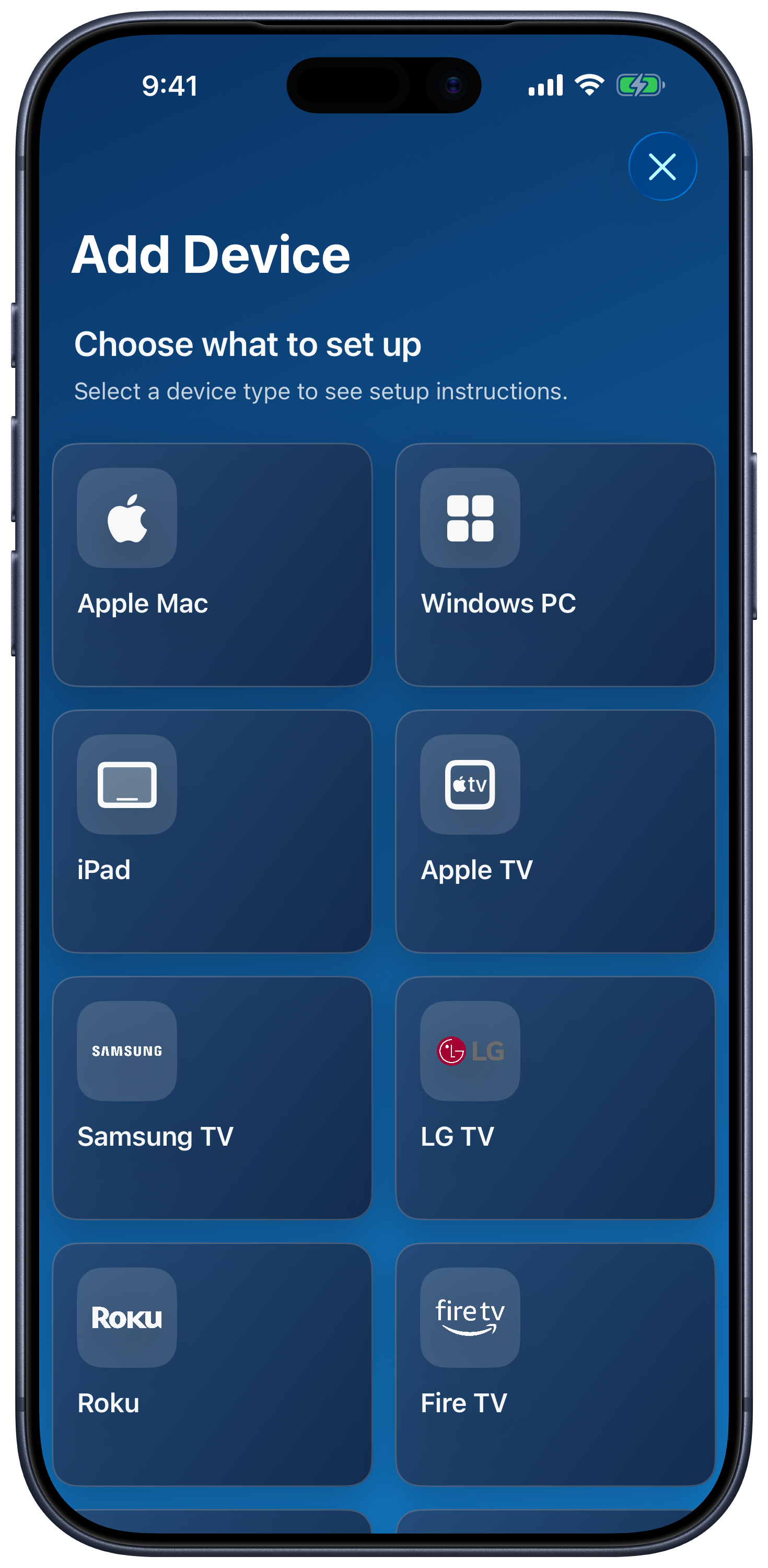
Choose Your Platform
| Device family | Setup guide |
|---|---|
| Apple TV | Pair Apple TV and use its remote. |
| Apple TV Gen 1, 2, 3 | Apple TV Gen 1, 2, 3 |
| Samsung TV | Samsung setup. |
| LG webOS TV | LG setup. |
| Roku | Roku setup. |
| Fire TV | Fire TV setup. |
| Android TV / Google TV | Android TV setup. |
| Hisense TV | Hisense setup. |
| Vizio TV | Vizio setup. |
| Philips TV | Philips setup — Experimental, with manual IP connection. |
| Sony TV | Sony setup — Experimental, with manual IP connection. |
| Panasonic TV | Panasonic setup — Experimental, with manual IP connection. |
Start from Add Device and select the platform. Choose by the TV’s operating system when a brand sells multiple systems—for example, a Roku TV uses the Roku connection flow.
Pair and Use the Remote
- Open Add Device and select the platform. Tap Show All if the list is filtered.
- Follow its checklist and enable any TV-side remote-control setting it requests.
- Select the discovered TV, then approve the request or enter the displayed code when prompted.
- Open the saved device and use the remote’s available tabs.
Keypads, text input, touchpads, app launchers, input selection, channels, and power controls vary by platform and model. Follow the controls actually offered for your device. Sony, Panasonic, and Philips support is experimental, so feature coverage and pairing can be less complete.
Rooms, Siri, and Live Activity
Group TVs with computers using rooms. Use the [TV] actions in Shortcuts for supported remote keys, apps, inputs, channels, and wake commands. Live Activity settings provide quick controls for supported selected devices.