 Skip to content

Before you begin
Sibelius KeyPad is a companion keypad for Sibelius running on a Mac or Windows computer. It sends shortcuts to the desktop app; Sibelius itself is separate software.
Connect in three steps
- Install and open the free Remote Helper on your computer.
- Put your iPhone or iPad and computer on the same Wi-Fi network or Personal Hotspot. Open Sibelius KeyPad and select your computer, approving access in the helper when prompted.
- Open Sibelius and your score on the computer. Make sure Sibelius is the active app before sending notation shortcuts.
Follow the Mac permission guide or Windows setup guide if you can connect but input does not work.
Find your notation controls
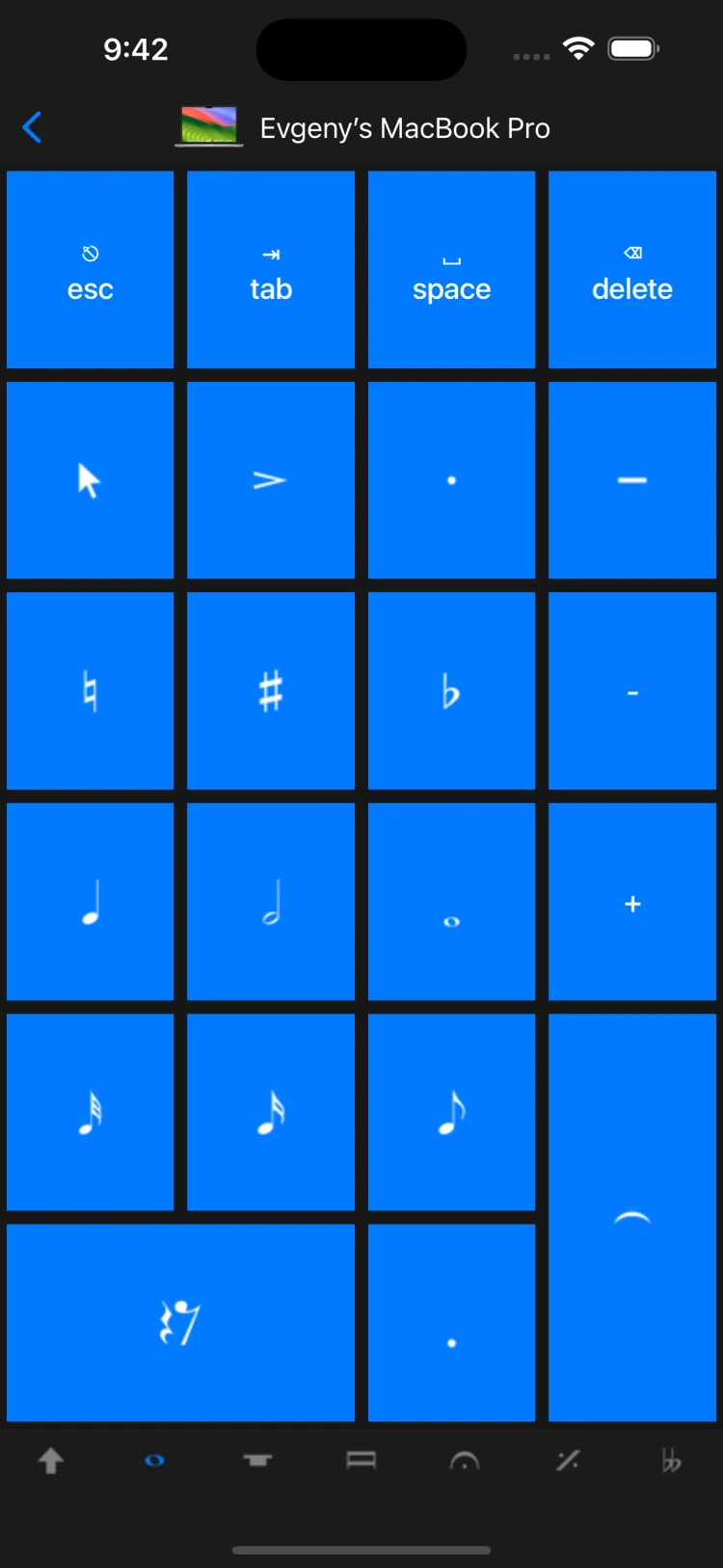
The app includes six keypad groups: Common Notes, More Notes, Beams and Tremolos, Articulations, Jazz Articulations, and Accidentals.
You can assign keyboard shortcuts to buttons, choose the shortcut sent when switching a keypad tab, and reset layouts to factory settings. The app can switch the desktop Sibelius keypad to match your selection.
If a button does the wrong thing
Check that Sibelius has focus and that its keyboard shortcut matches the one assigned to the button. A customized desktop shortcut set can change what a key combination does. Try a standard notation button before checking a custom layout.
For discovery or pairing problems, start with the connection guide. For notation-specific questions, contact support with your Sibelius version, operating system, and the button you used.