 Skip to content

What you need
SearchAds Manager connects to an Apple Ads account through its API. You need an account with API access and the credentials requested by the app. Your App Store Connect credentials alone are not Apple Ads API credentials.
Prepare your API access
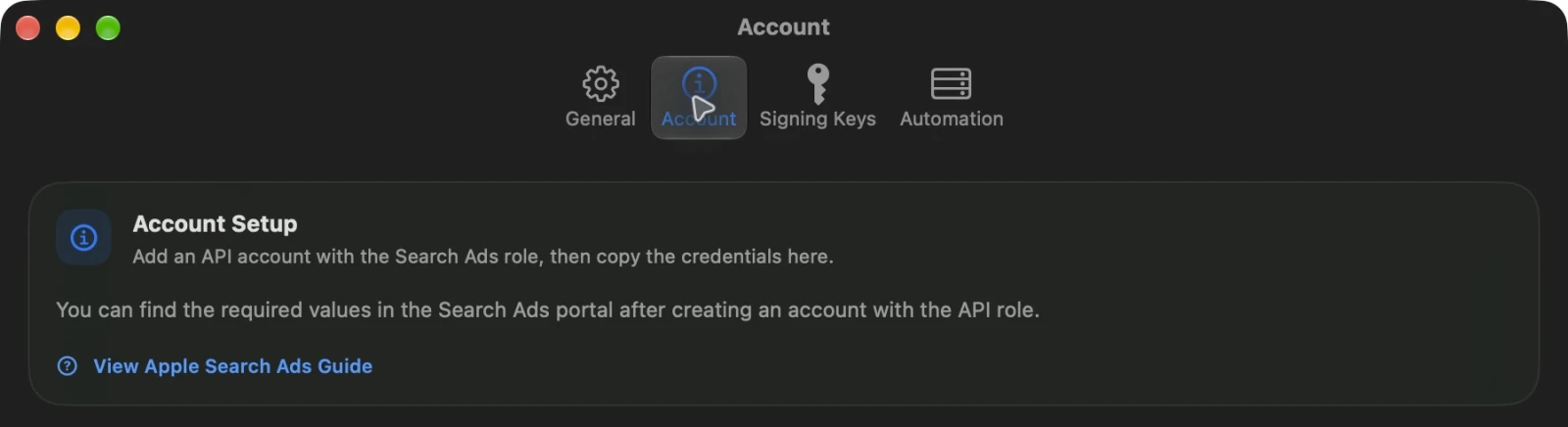
- Ask an administrator of your Apple Ads account to grant the appropriate API role.
- Follow Apple’s OAuth setup guide to prepare your key pair and account identifiers and register your public key.
- Enter the requested API credentials in SearchAds Manager. The private key is stored in the device Keychain.
- Select your account and check a recent report to confirm the connection.
Use the permissions appropriate to your work. Changing campaigns requires an account role that allows those changes.
Reporting and management
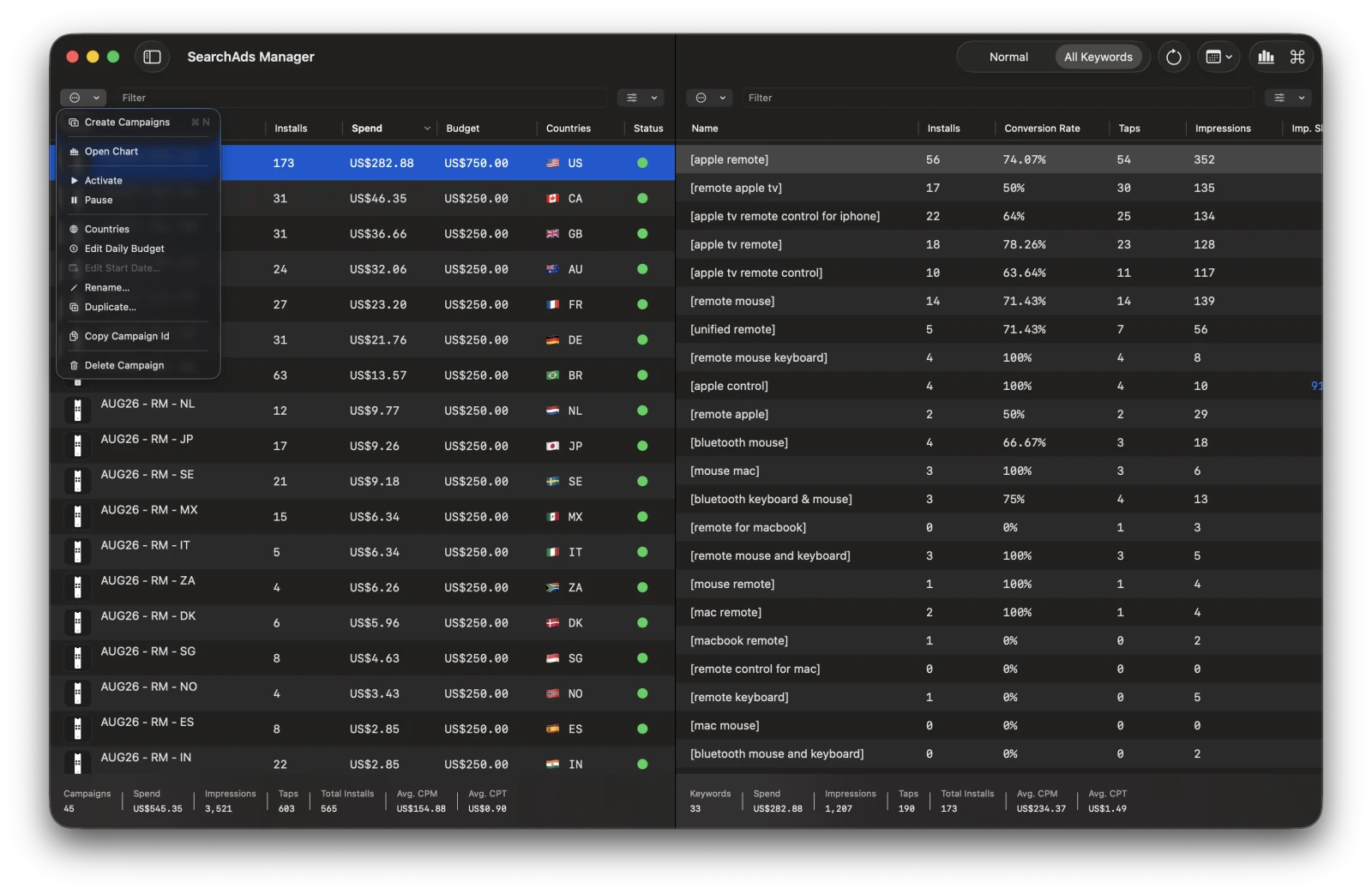
Reporting is free. You can review spend, impressions, taps, installs, cost per tap, and cost per acquisition.
Creating or changing campaigns, ad groups, ads, and keywords requires a paid upgrade. Current subscription and lifetime options, where offered, are shown in the app and App Store listing.
Connect compatible tools on Mac
-
Codex
Sends a request to the local MCP server.
-
SearchAds Manager
Runs the server on your Mac and handles the request.
-
Apple Ads
Returns account data or applies an authorized campaign action.
The optional local MCP server makes reporting and campaign actions available to compatible tools on your Mac. Start with the MCP server overview and the Codex connection guide.
If your account will not connect
Check that you are using Apple Ads API credentials, that your public key is registered, and that your API role can access the selected account. When contacting support, include the error message and platform, but leave private keys and secrets out of your message.